Accurate Text Rendering
Create images that need more readable text, such as posters, UI mockups, labels, thumbnails, and marketing graphics.
GPT Image 2 AI Image Generator
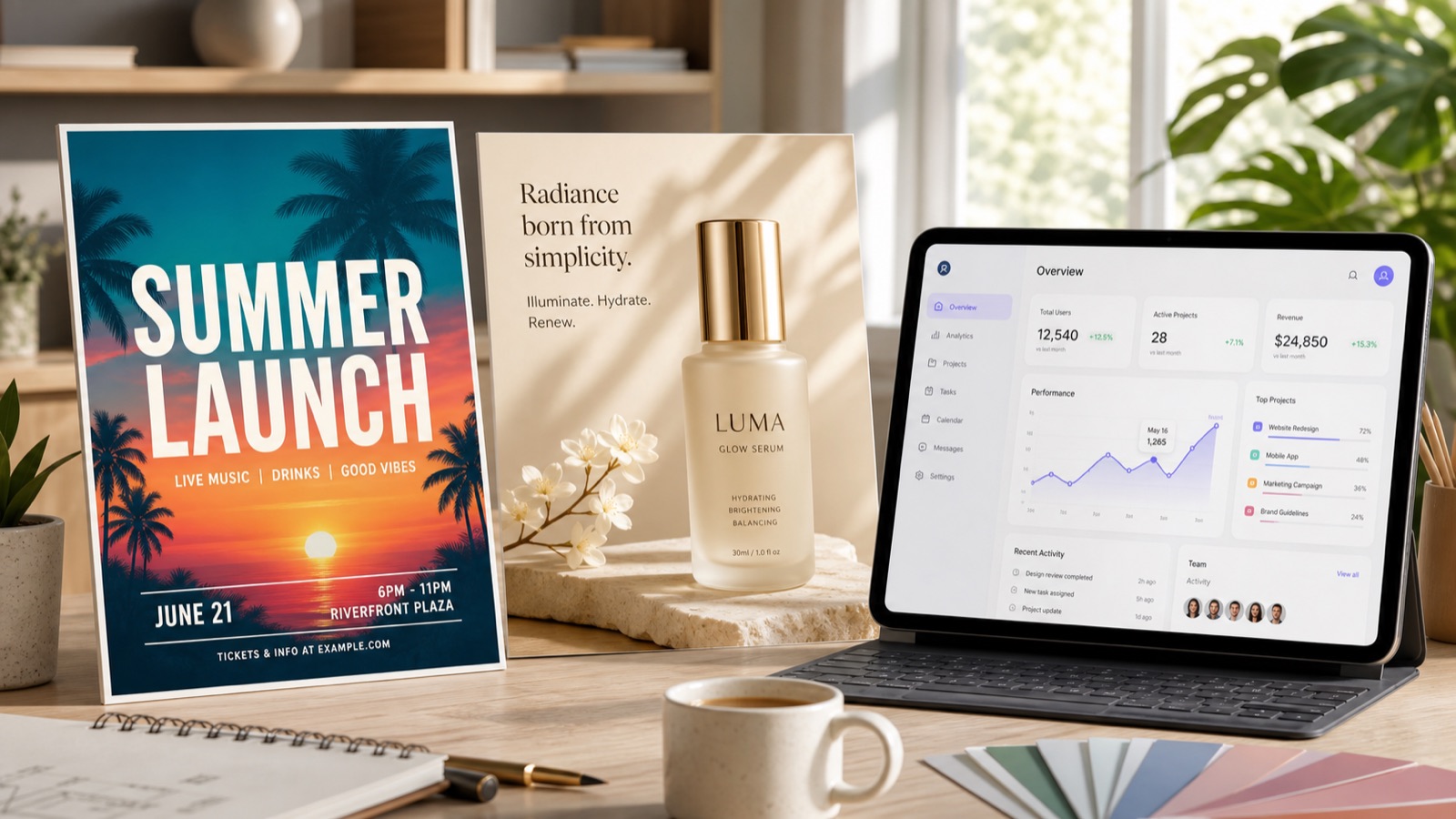
GPT Image 2 is built for practical visual creation, including layouts that need readable text, structured composition, and clear visual hierarchy. Start with prompt examples, customize the subject or message, and generate your own image with GPT Image 2.
| Prompt | Describe the image you want to create. |
| Reference Image | Upload an image to guide style, layout, product shape, or composition. |
| Model | GPT Image 2 |
| Quality | Draft, Standard, or High. |
Use editable prompt templates, upload reference images, and start generating with free credits in Meigen AI.
Use GPT Image 2 to create high-resolution visuals for campaigns, product pages, posters, banners, and creative projects. Choose square, portrait, landscape, or 4K-style sizes depending on the use case.
GPT Image 2 is designed for high-quality generation and editing from text prompts and image inputs. In Meigen AI, you can edit prompt fields before generation so the subject, product, background, lighting, camera angle, typography, mood, and composition match your intent.
Meigen AI turns GPT Image 2 into an editable workflow for real creative tasks: choose a prompt, customize details, add a reference image, generate, and refine.
Create images that need more readable text, such as posters, UI mockups, labels, thumbnails, and marketing graphics.
Generate high-resolution images for product visuals, campaign assets, digital design, and print-oriented creative work.
Upload a reference image to guide the style, product shape, composition, mood, or visual direction.
Start from a prompt template, change the subject, product, color, style, and layout, then generate your own version.
Use the Meigen AI Prompt Gallery to find proven image prompts, then generate similar visuals with GPT Image 2.
Create product ads, posters, social media posts, UI screens, ecommerce images, portraits, and brand visuals.
Go from a simple idea or gallery example to an editable GPT Image 2 generation workflow in five steps.
| Step 1 | Choose GPT Image 2Select GPT Image 2 from the model options inside Meigen AI. |
|---|---|
| Step 2 | Enter a Prompt or Choose One from the GalleryDescribe what you want to create, or start from a GPT Image 2 prompt template in the Meigen AI Prompt Gallery. |
| Step 3 | Customize the DetailsEdit the subject, product, headline, style, background, color palette, composition, size, and quality before generating. |
| Step 4 | Upload a Reference ImageAdd a reference image if you want to guide the style, layout, product shape, or visual direction. |
| Step 5 | Generate and RefineGenerate the image, review the result, then create variations, edit the prompt, or use the output as a new reference. |
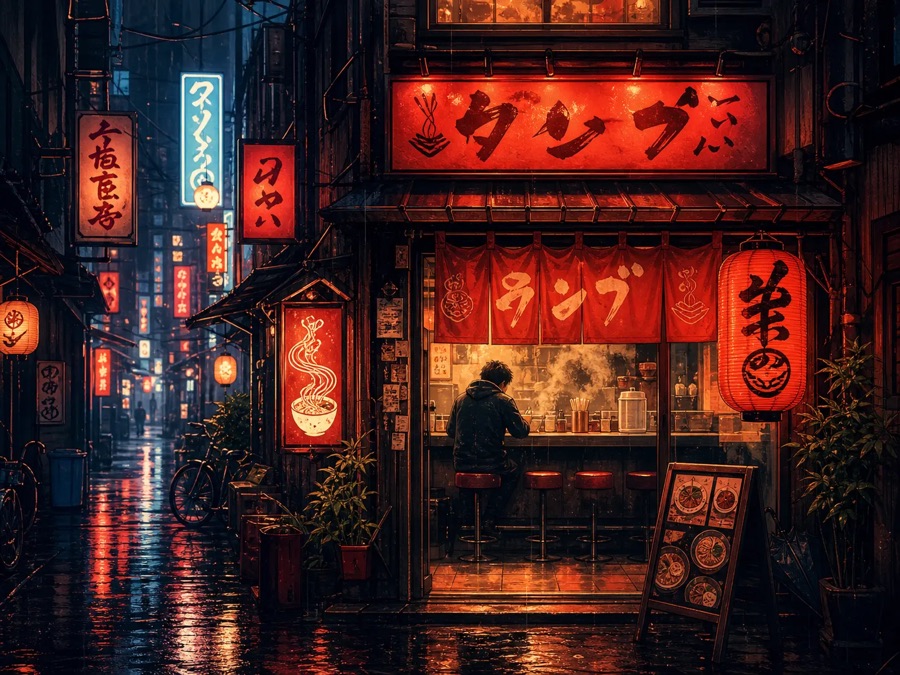 Posters and Event GraphicsCreate poster-style layouts with stronger typography, readable headlines, visual hierarchy, and cinematic composition.
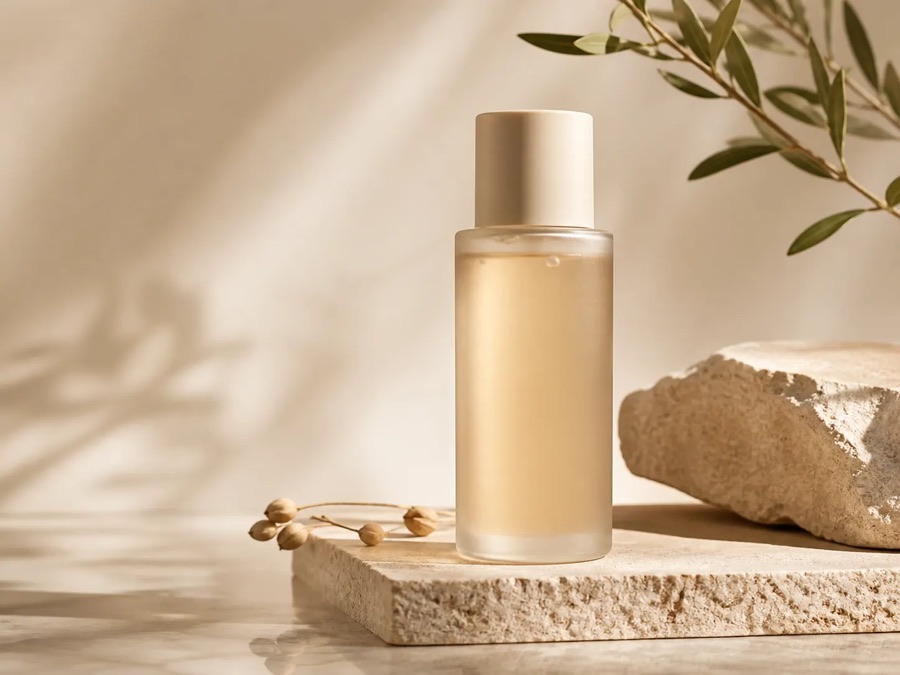 Product AdsGenerate product ad concepts, ecommerce banners, skincare visuals, perfume ads, tech product shots, and campaign images.
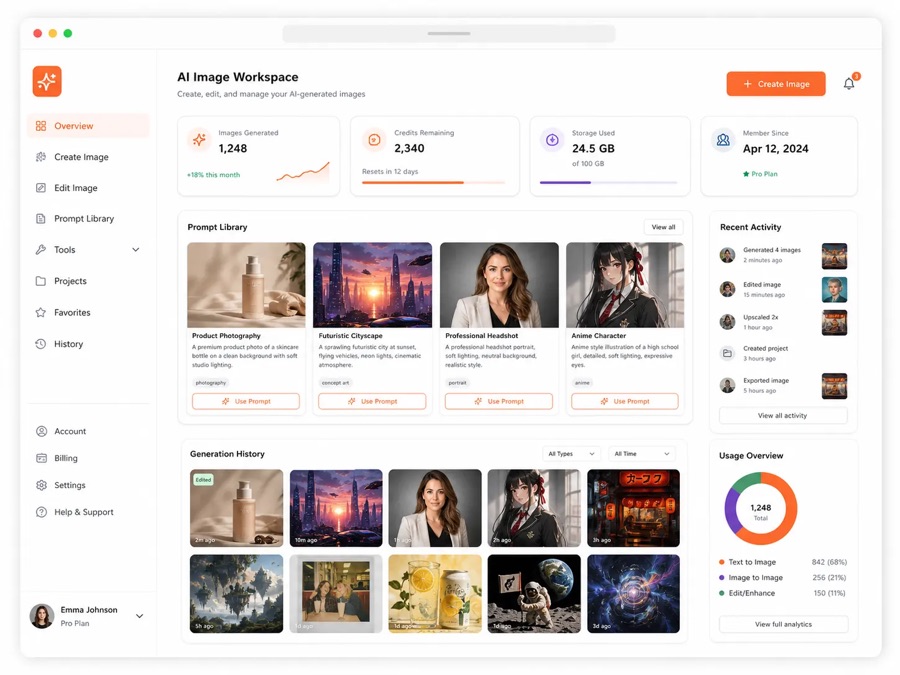 UI Mockups and App ScreensCreate realistic UI-style screens, landing page concepts, dashboard visuals, mobile app mockups, and product presentations.
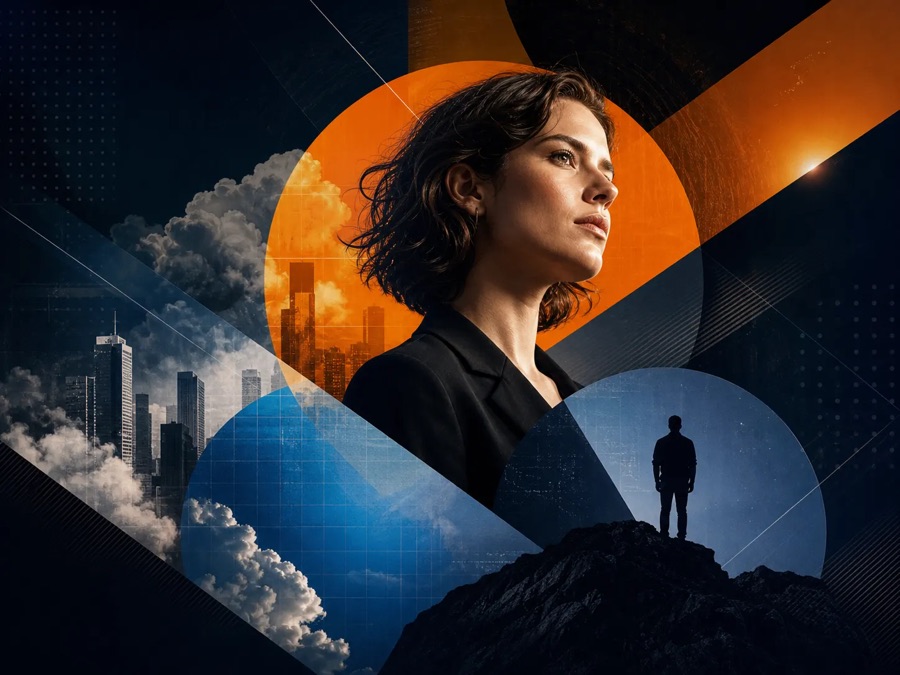 Social Media CreativesGenerate thumbnails, reels covers, short-form ad visuals, campaign graphics, and shareable branded images.
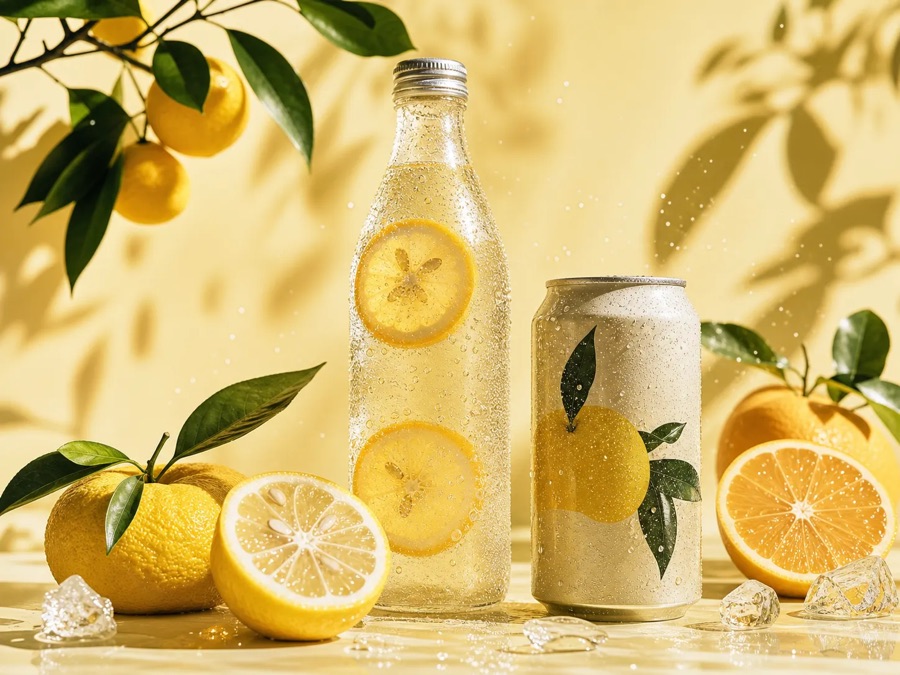 Ecommerce Product ImagesCreate product scenes, lifestyle product images, packaging concepts, and high-resolution listing visuals.
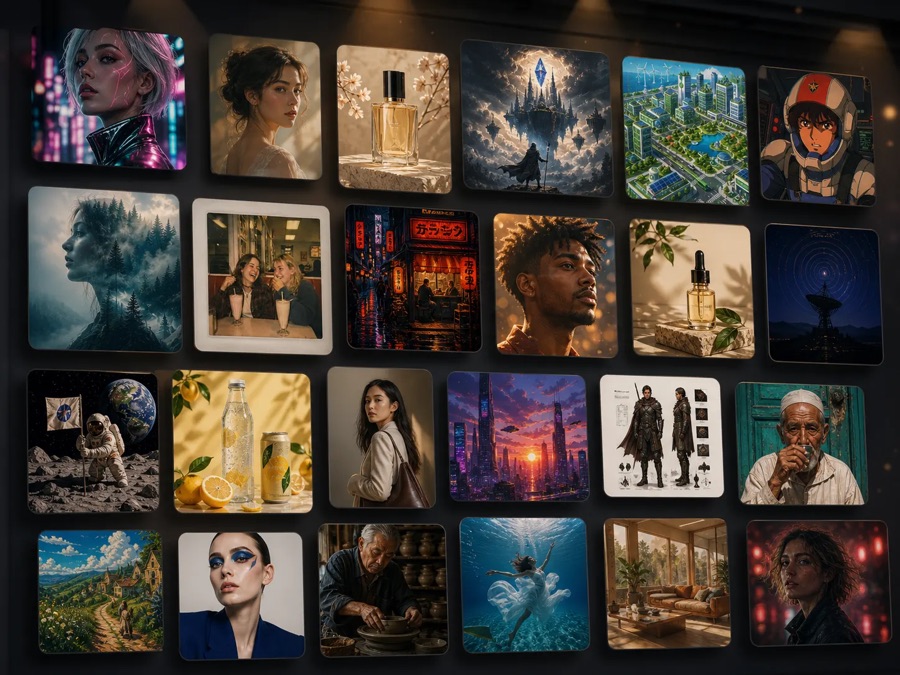 Brand and Marketing VisualsBuild consistent visual directions for campaigns, presentations, newsletters, hero images, and creative tests.
Do not write every GPT Image 2 prompt from scratch. Browse the Prompt Gallery, choose a visual style you like, then customize the prompt and generate your own image.
Customize a prompt for product campaigns, ecommerce listings, and brand visuals.
Create editorial, event, music, fashion, travel, or cinematic poster concepts.
Generate realistic UI screenshots, dashboards, mobile screens, and SaaS product visuals.
Upload an image and use GPT Image 2 to generate a similar visual direction.
GPT Image 2 fits teams and solo creators who need polished visual directions without rebuilding every prompt from a blank page.
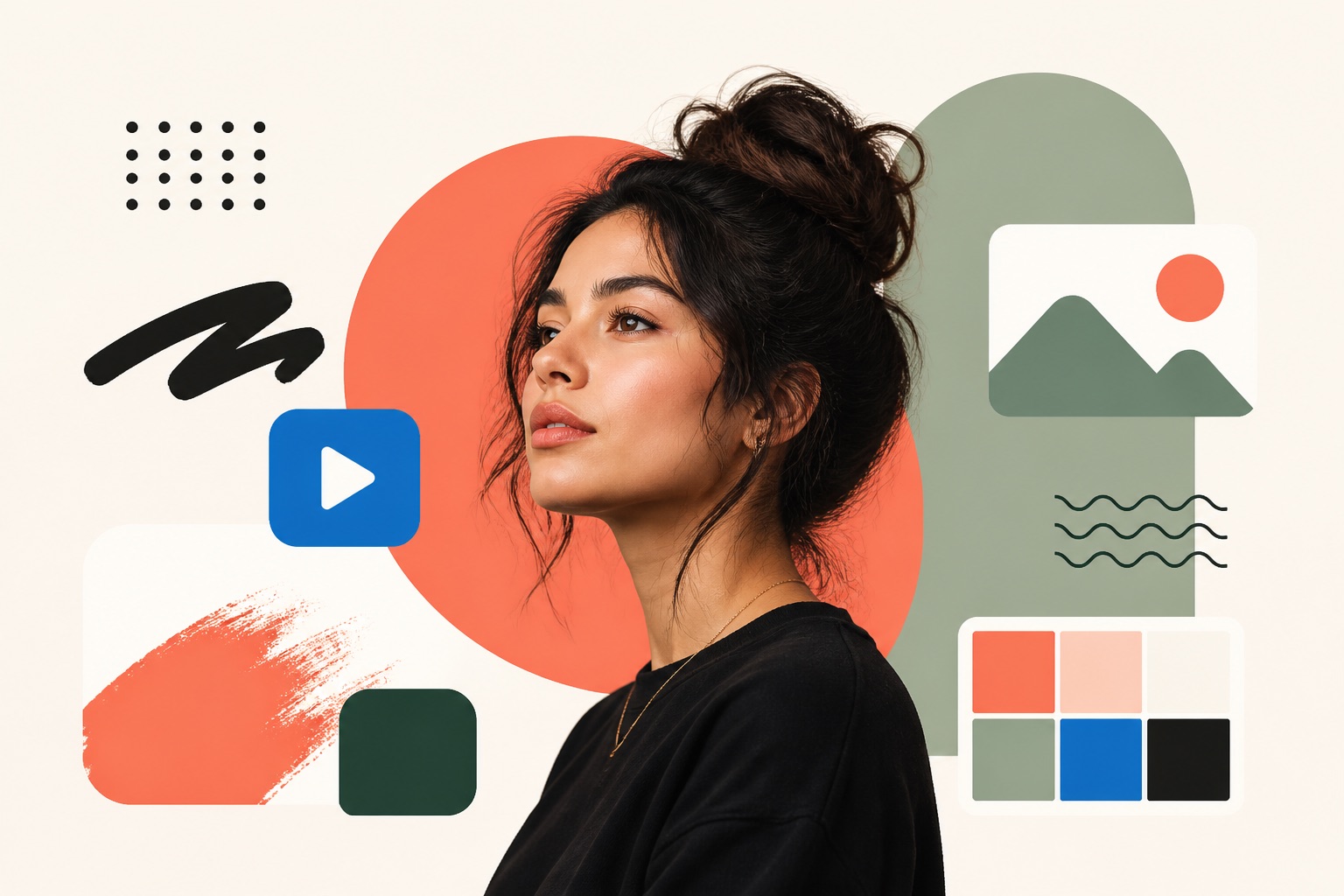
Create thumbnails, social graphics, blog visuals, poster concepts, and branded content without starting from a blank canvas.
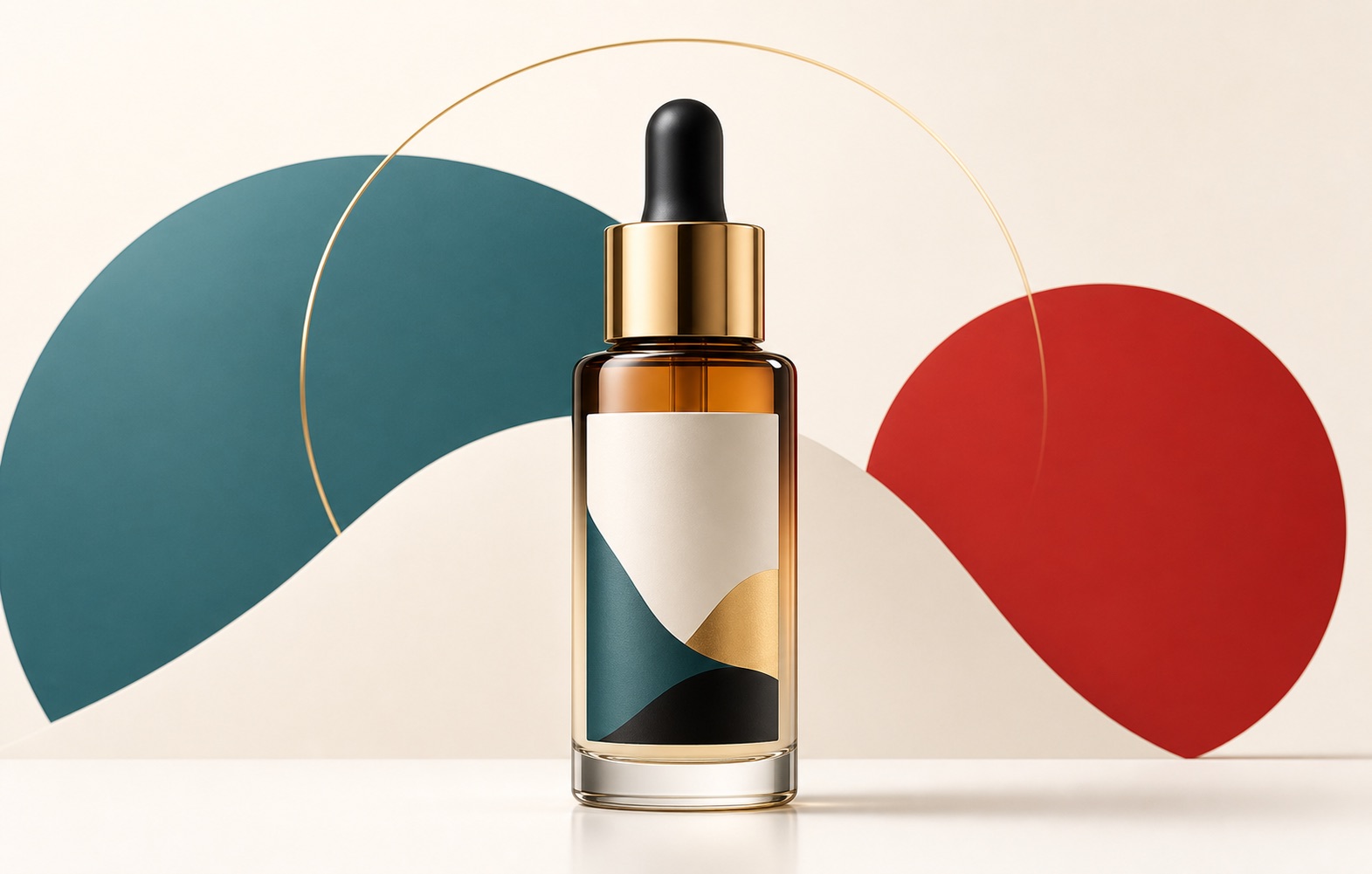
Generate ad concepts, product campaigns, landing page visuals, banners, and social media assets for fast creative testing.
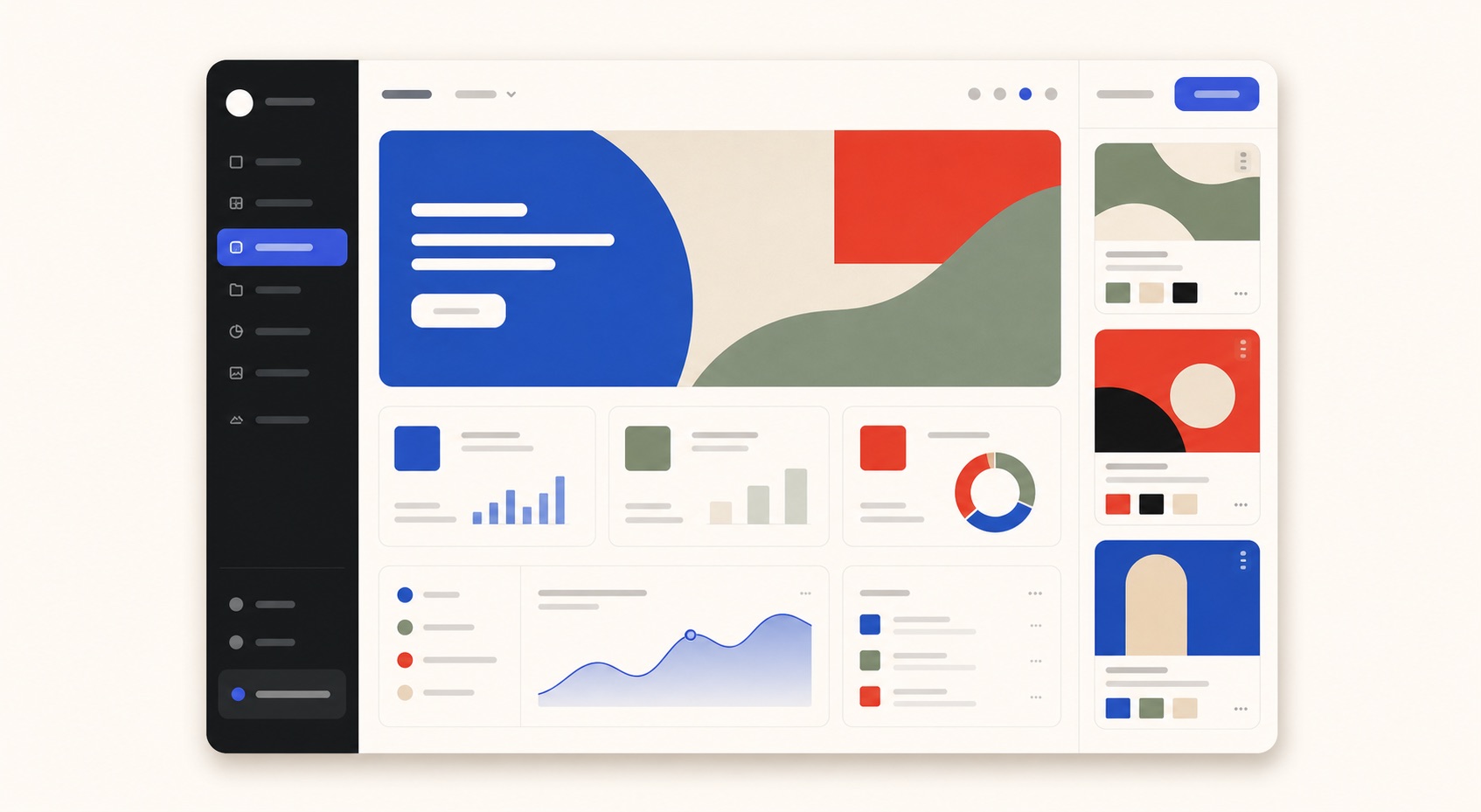
Explore UI mockups, moodboards, poster layouts, typography-heavy concepts, and campaign directions before moving into final design tools.
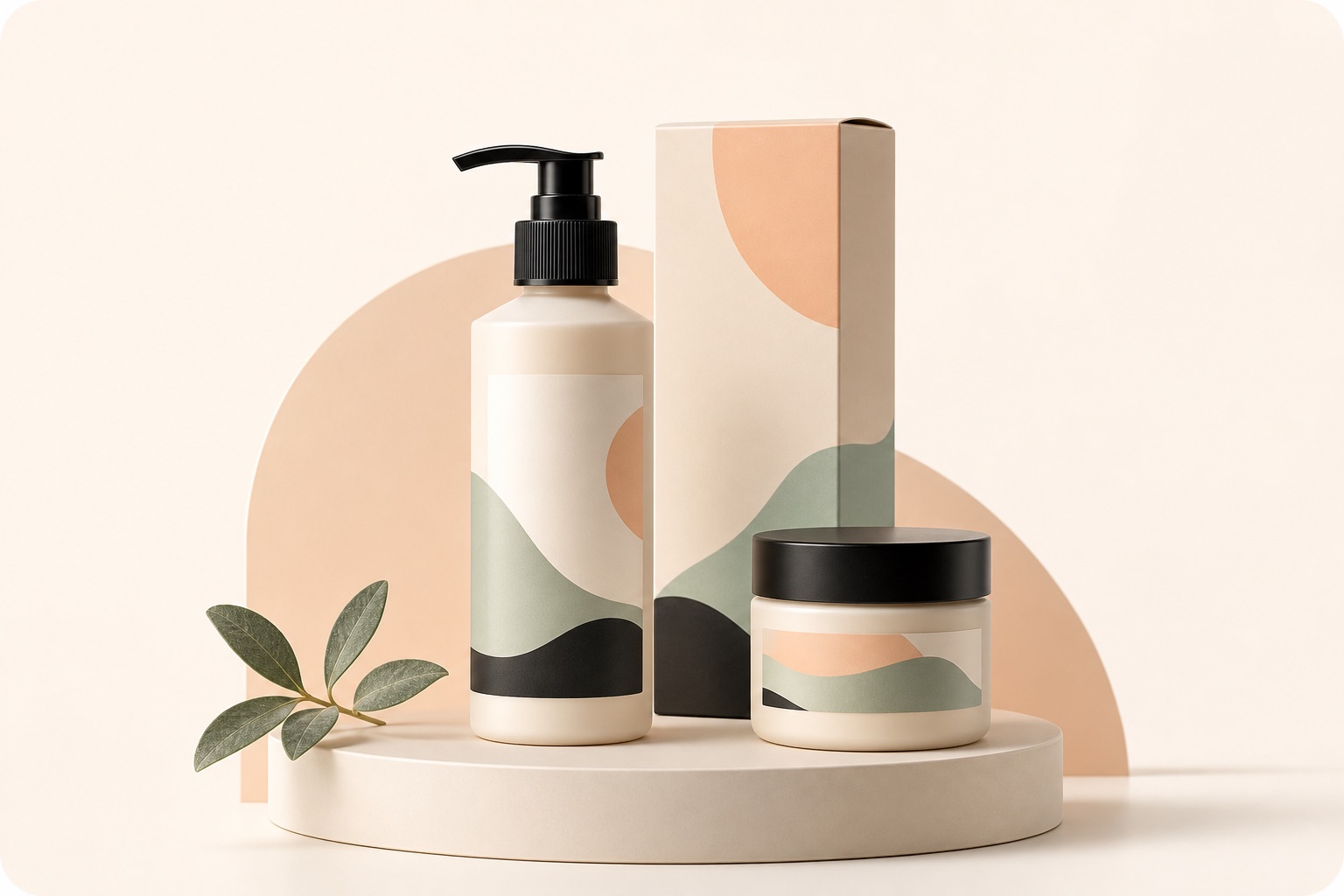
Create product visuals, lifestyle scenes, packaging concepts, and listing images that make products easier to present.
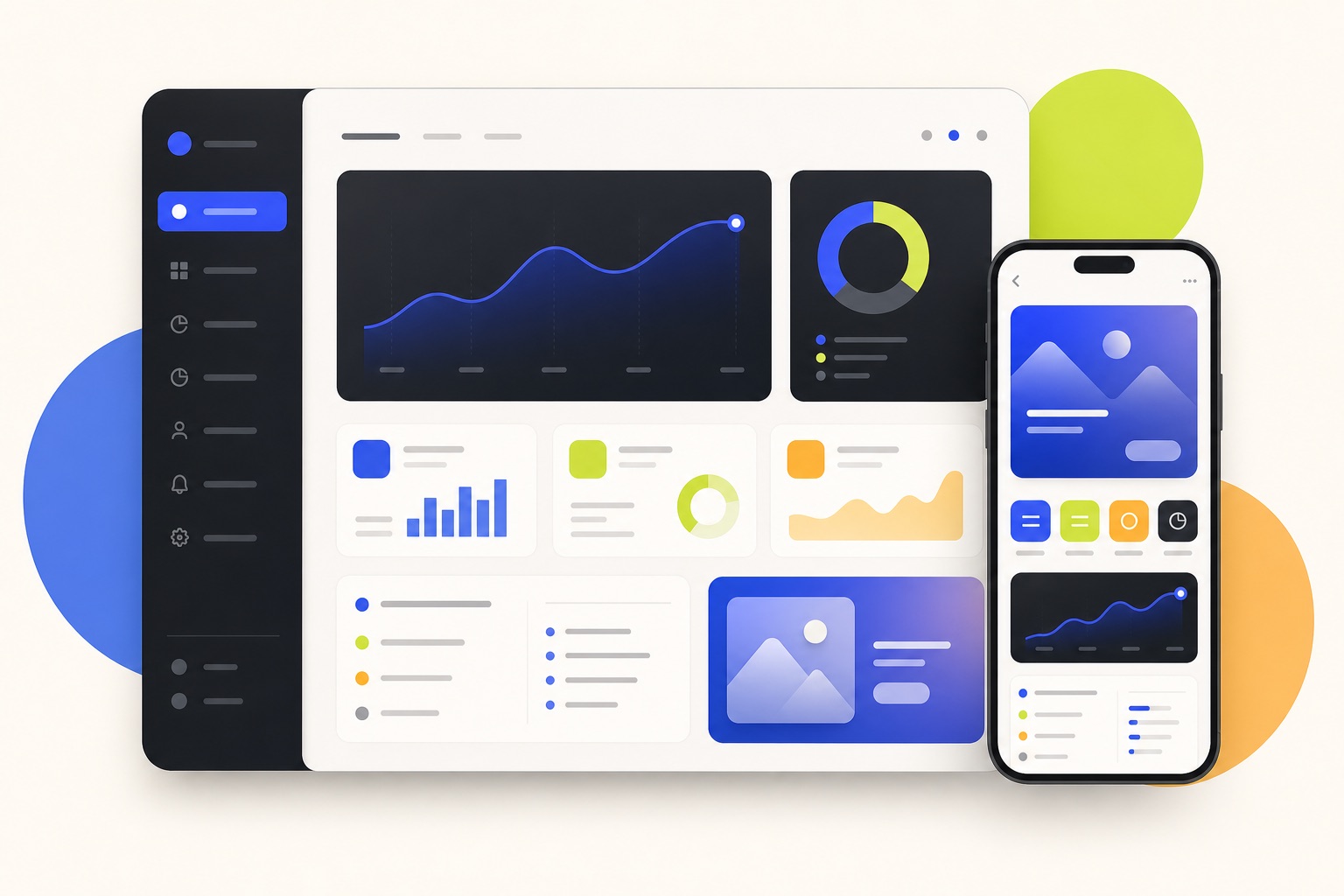
Generate app screenshots, feature visuals, landing page hero images, and launch assets for SaaS, AI tools, and digital products.
GPT Image 2 is useful when you need more than a random AI image. In Meigen AI, it becomes part of an editable workflow: choose a prompt, customize the details, add a reference image, generate, and refine.
| Start from a blank prompt | Start from editable prompt templates |
| Weak control over layout and text | Better fit for structured visuals and text-heavy concepts |
| Hard to reuse styles | Reuse prompts from the Meigen AI Prompt Gallery |
| Limited editing flow | Edit prompt fields and use reference images |
| One-off results | Generate variations, refine prompts, and save ideas |
Compare GPT Image 2 with other image and video models in Meigen AI. Try different models for speed, style, reference images, video generation, and commercial creative work.
Use this model inside Meigen AI when its style, speed, or media workflow fits the asset you are creating.
Use this model inside Meigen AI when its style, speed, or media workflow fits the asset you are creating.
Use this model inside Meigen AI when its style, speed, or media workflow fits the asset you are creating.
Use this model inside Meigen AI when its style, speed, or media workflow fits the asset you are creating.
Use this model inside Meigen AI when its style, speed, or media workflow fits the asset you are creating.
Use this model inside Meigen AI when its style, speed, or media workflow fits the asset you are creating.
GPT Image 2 is an advanced AI image generation model for creating and editing images from text prompts and image inputs. It is designed for high-quality visual generation, structured prompts, and practical creative workflows.
Yes. Meigen AI lets you generate images with GPT Image 2, start from prompt templates, customize your prompt, upload reference images, and create your own visual variations.
GPT Image 2 is stronger at text rendering than earlier image models, making it useful for posters, ads, UI mockups, labels, and marketing graphics. As with any AI image model, final text quality can still vary, so review important text before using the image publicly.
GPT Image 2 supports high-resolution image sizes, including 4K-style landscape and portrait outputs. In Meigen AI, you can choose the size and quality settings that match your project.
Yes. You can upload a reference image to guide style, composition, product shape, visual mood, or layout direction before generating with GPT Image 2.
Yes. GPT Image 2 is a strong fit for product ads, ecommerce visuals, product launch graphics, packaging concepts, and marketing images because it can follow detailed prompts and create polished commercial-style visuals.
GPT Image 2 can help create UI-style mockups, dashboard concepts, landing page visuals, and app screenshot-style images. It is best used for visual exploration and presentation assets, not as a replacement for production UI design files.
No. You can start from the Meigen AI Prompt Gallery, use a prompt template, and edit fields like subject, product, style, headline, color, and composition.
A prompt gallery gives you ideas to copy. Meigen AI combines the prompt gallery with a generator, so you can customize a prompt, upload references, generate images, and create your own variations.
Yes. You can reuse a prompt structure and adjust the subject, brand, headline, style, and format to create multiple visual directions.
Start from a prompt, a reference image, or a gallery example. Pick GPT Image 2, choose your size and quality, then refine the result with Meigen AI.